
Getting started
- Sign in at app.aivoxera.online with the email and temporary password you received. Forgot it? Use “Forgot password?” on the sign-in page.
- Allow the microphone and notifications when your browser asks — calls and alerts depend on it.
- Set your status to Available (bottom of the menu) to start receiving calls and alerts. Switch to Offline when you finish: you won't ring or get notified.
- Install the app on your phone (optional): open the site in Safari or Chrome and choose “Add to Home Screen” to get push notifications like a native app.
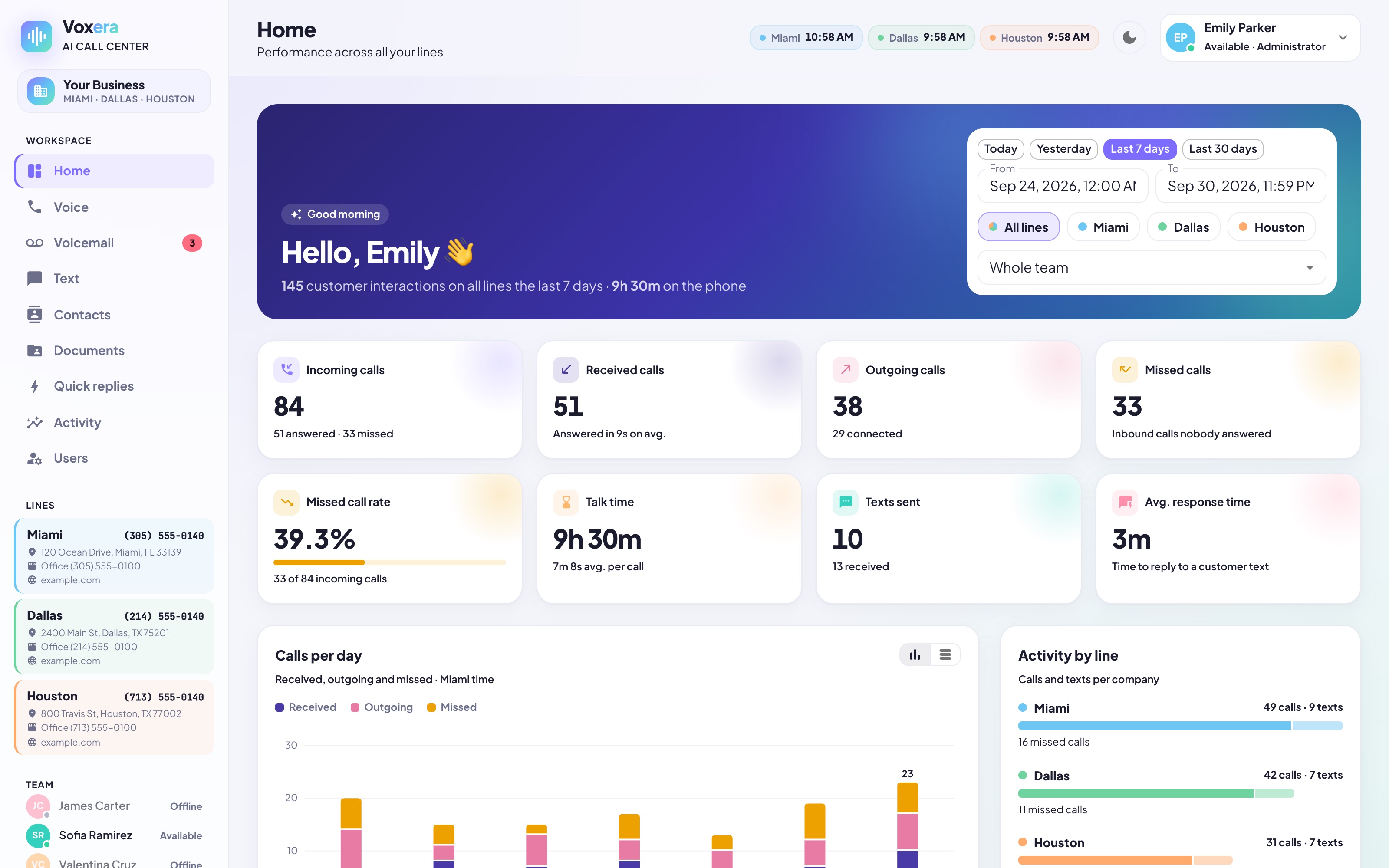
You only see the sections your administrator enabled for you.
Calls
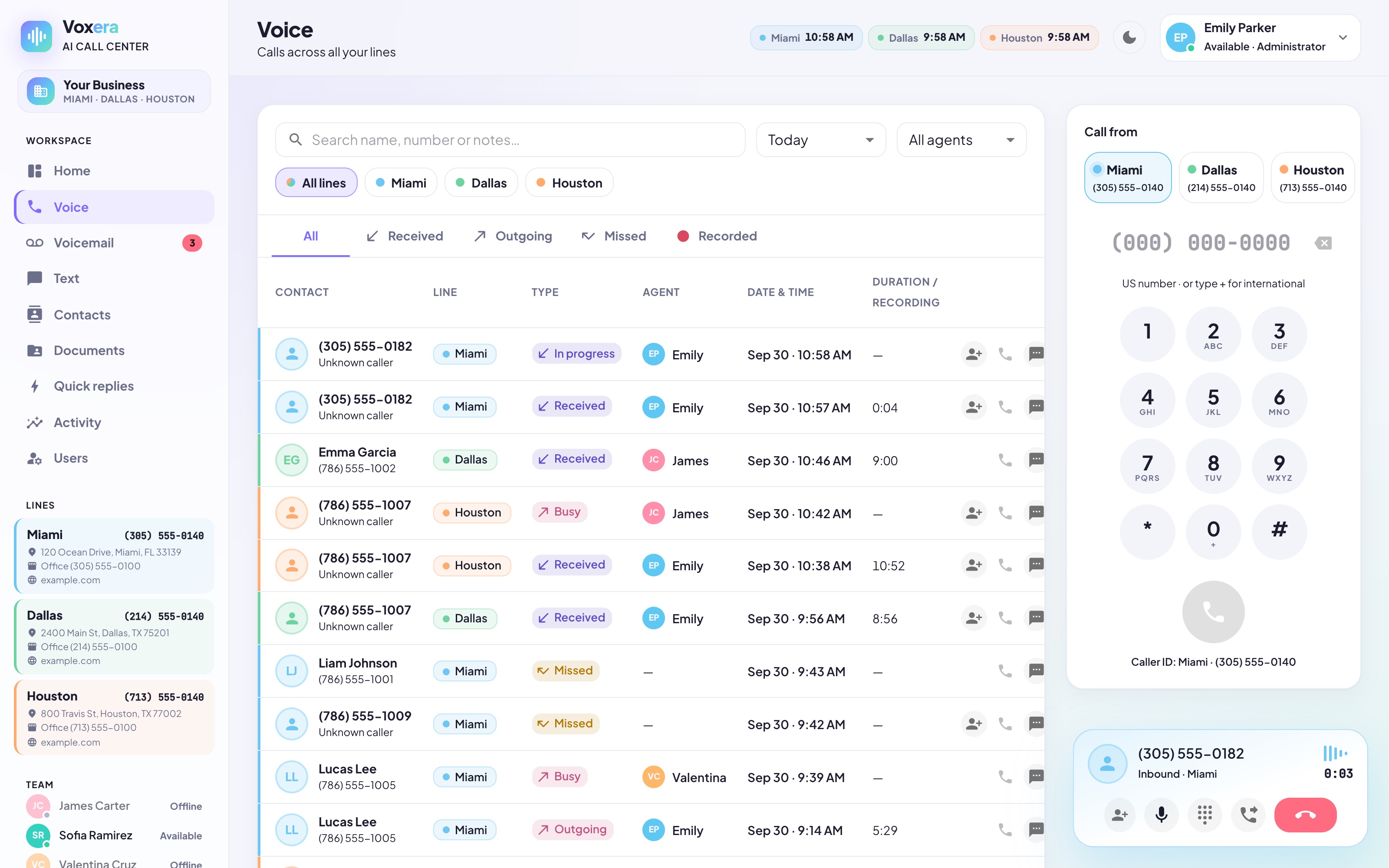
- Answer: when a call comes in you'll see a popup with the caller and the line — click Answer. Every available agent rings at once; the first to answer takes it.
- Make a call: go to Voice, pick the line (location) you're calling from, type the number and press call.
- During a call: mute, keypad, switch speaker/earpiece, or transfer the call to another number.
- After a call: click it in Voice to see the details, add a note (for example, if a customer was rude), listen to the recording or create an AI summary.
- Voicemail: calls nobody answers go to voicemail; you'll find them, with a transcript, in Voicemail.
Texts
- Open Text to see every SMS conversation. Unread ones are marked.
- Click + to text a new number, choosing which location it's sent from.
- Use Quick replies (⚡) to insert saved answers — address, website, booking links — with the customer's name filled in.
Bookings
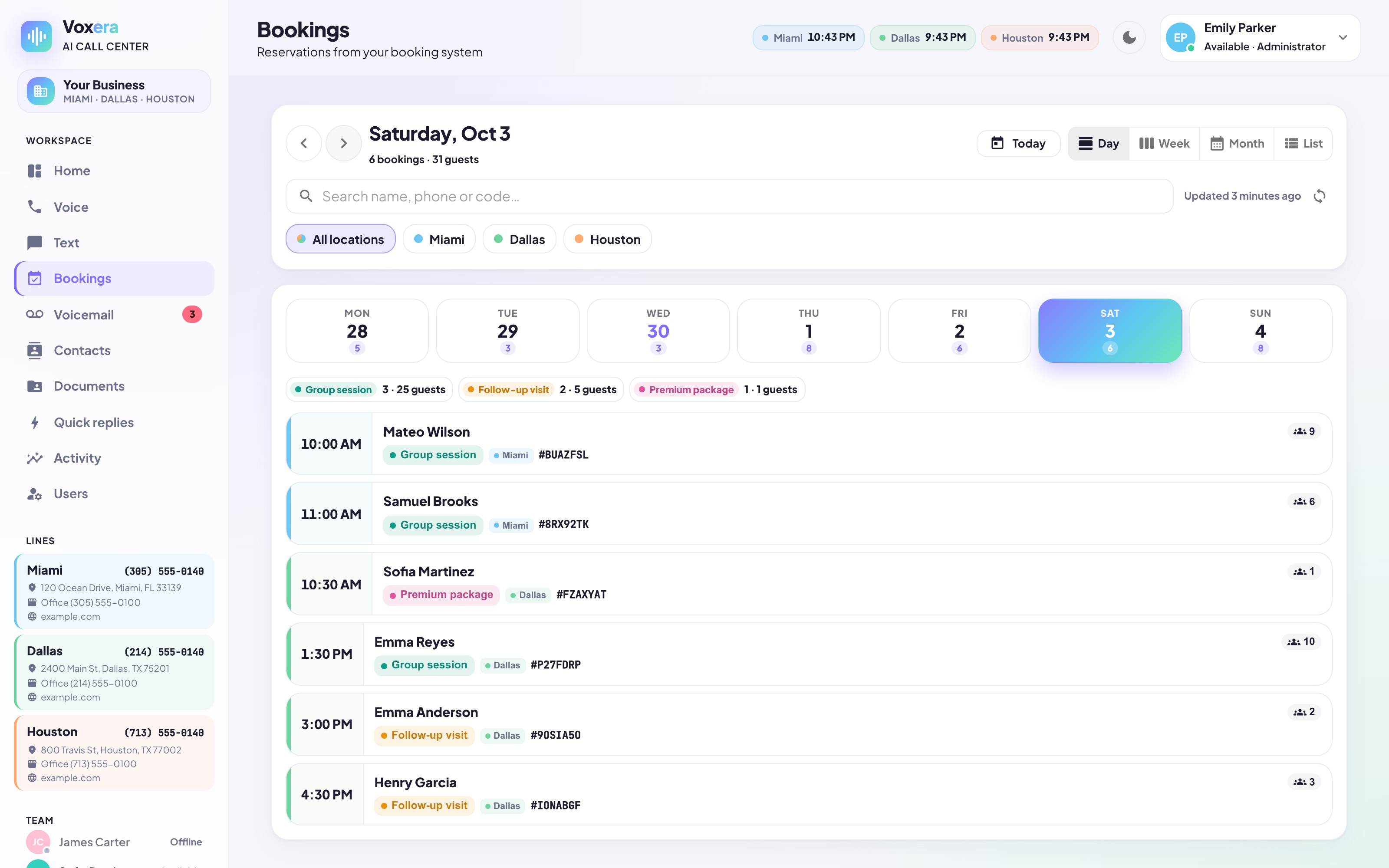
- Every reservation — website and travel platforms — appears in Bookings by day, week, month or list.
- Open a booking to call or text the customer, send a reminder text before the tour, or a Google review request after it.
Payments
- In Payments, click New payment.
- Type the customer's phone (or search a contact), the amount and a short description.
- Send it: the customer gets a secure link by text (and email if you choose). You're notified the moment they pay.
Refunds and receipts can be sent from the payment details. Only users with the right permission can refund. Always confirm the amount with the customer before sending a link.
Google reviews
- Reviews shows every Google review of every location, with filters by stars, date and replied / not replied.
- Click a review to reply with AI (a draft you can edit) or manually. Replies are published on Google.
Contacts & customer history
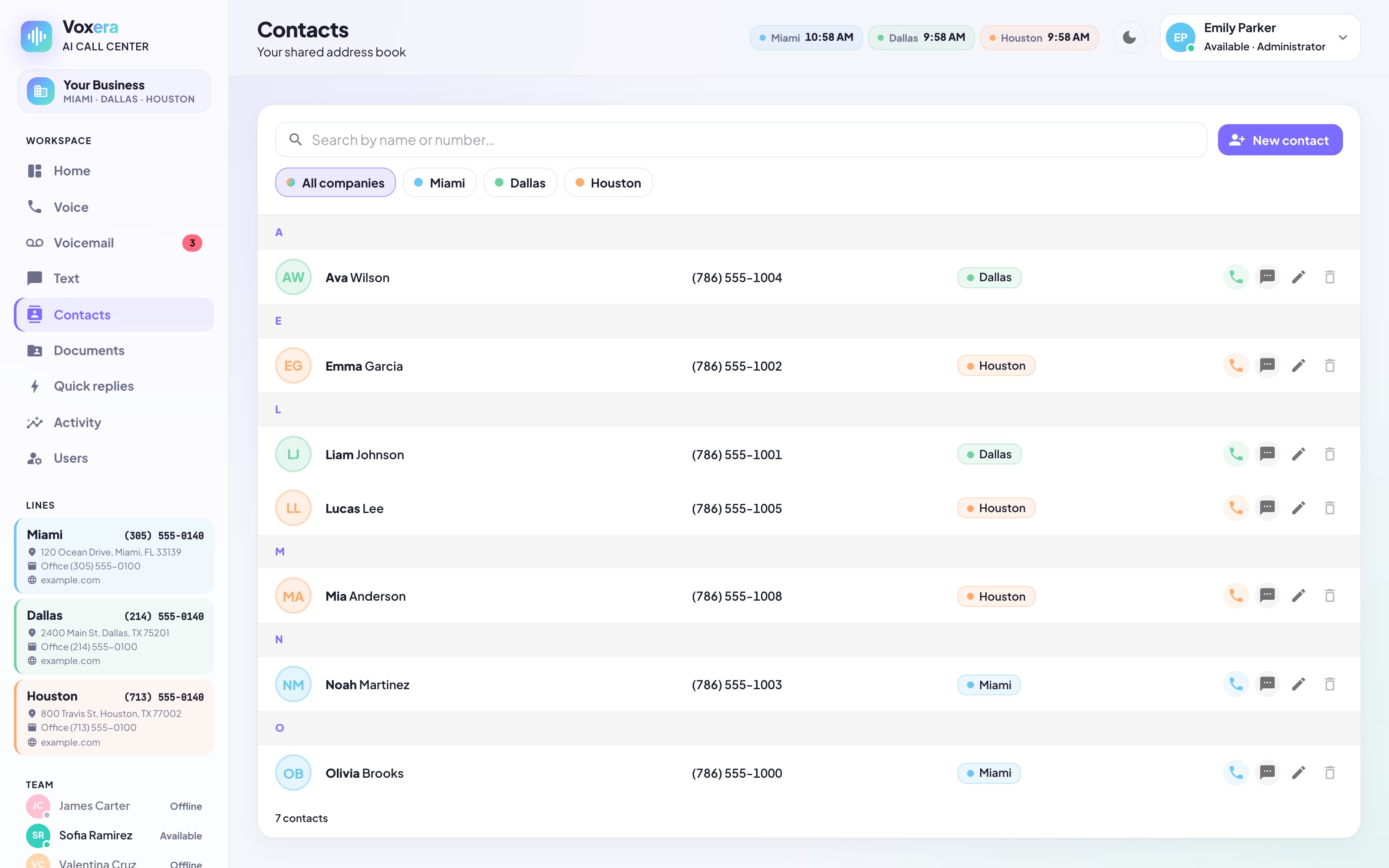
- Save any number from a call or conversation. Customers from bookings, documents and payments are added automatically.
- Click a contact to see their full history: every call, text, booking, payment and email — who did it and when.
Recommended setup
Call quality depends mostly on your equipment and internet connection. To get the clear, stable calls Voxera is designed for, we recommend:
A headset with a noise-cancelling microphone
A USB or Bluetooth headset with an ENC/ANC (environmental / active noise-cancelling) boom microphone. Avoid laptop speakers and built-in mics: they cause echo and pick up background noise.
A fast, stable internet connection
Fiber-optic internet whenever possible, with at least 10 Mbps upload and download per agent and low latency (under 100 ms). Prefer a wired Ethernet connection; on Wi-Fi, stay close to the router on the 5 GHz band.
An up-to-date browser on a computer
The latest Google Chrome or Microsoft Edge on a computer. Agents should take calls on a computer; the phone app is great for alerts and on-the-go use.
A quiet place and a free connection
Work from a quiet room, avoid VPNs, and pause large downloads, video streaming or cloud backups during calls — they compete with your call for bandwidth.
Important: Voxera shows a warning on screen when it detects a weak connection. Echo, choppy audio, delays or dropped calls caused by the user's internet connection, Wi-Fi, devices, headset, browser, computer, local network or phone carrier are outside Voxera's control and are not a platform failure. Following these recommendations is the user's responsibility.
Recording, monitoring & AI
- Calls are recorded from the moment they're answered, for quality, training and dispute resolution. Recordings are kept for a limited time and are available only to authorized users.
- Everything is logged: calls, texts, notes, sign-ins, status changes, payments, refunds and changes to settings are recorded with the user who did them, the date and the time. Administrators can review this activity, working hours and the device used for each call.
- Artificial intelligence: Voxera uses AI services to transcribe and summarize calls, write review reply drafts, read booking emails and similar tasks. AI output can contain mistakes — always review it before relying on it or sending it to a customer.
- By using Voxera, users acknowledge and agree to call recording, activity monitoring and the use of AI described here. Users are responsible for informing customers where local law requires it.
Your responsibilities
- Keep your account private: don't share your password or let others use your session. You're responsible for everything done with your account. Sign out on shared computers.
- Use it for work only: Voxera is for business communication with customers. No harassment, offensive language, spam or unauthorized use of customer information.
- Protect customer data: phone numbers, emails, payments and conversations are confidential. Don't copy, export or share them outside the platform.
- Check before you send: payment links, refunds, texts and review replies reach real customers — confirm the customer, amount and content first.
- Report problems quickly: tell your administrator if you notice something unusual, a security issue or a customer complaint.
This guide complements our Terms & Conditions and Privacy Policy, which apply to every use of the platform.
Help
Questions or something not working as expected? Check the recommended setup above first, then contact your administrator or write to [email protected]. Include what you were doing, the time and, if possible, a screenshot.